Short answer: in Nonprofit Cloud, a gift is typed into a Gift Entry record first, and nothing else is created until that entry is processed. Entries can be grouped into a Gift Batch of up to 50,000 gifts, checked with a Batch Dry Run, and then processed into Gift Transactions, designations, soft credits and tributes in one step. Gift Entry also finds the right donor by name or external ID, and links a payment to an existing Gift Commitment so pledge and recurring payments update the expected transaction instead of creating a duplicate.
Why Gift Entry exists
Most gift processing problems are not about typing. They are about what happens after: the wrong donor matched, a payment recorded twice, a batch total that does not match the bank deposit. Nonprofit Cloud separates capturing a gift from creating records, so mistakes can be caught while they are still just staged entries.
NPSP also has a Gift Entry feature, built on its Advanced Mapping, but it creates NPSP Opportunities and Payments. The Nonprofit Cloud version works with the new fundraising objects. Our NPSP vs Nonprofit Cloud guide explains the wider differences.
The objects involved
| Object | What it holds |
|---|---|
| Gift Entry | One gift as entered, before processing |
| Gift Batch | A group of gift entries processed together |
| Gift Transaction | The gift itself once processed |
| Gift Commitment and Gift Commitment Schedule | A pledge or recurring gift and its schedule |
| Gift Transaction Designation | How a gift splits across funds |
| Gift Soft Credit | Credit to someone other than the donor |
| Gift Tribute | A gift in honour or memory of someone |
| Refund | Money returned to a donor |
How a batch is processed, step by step
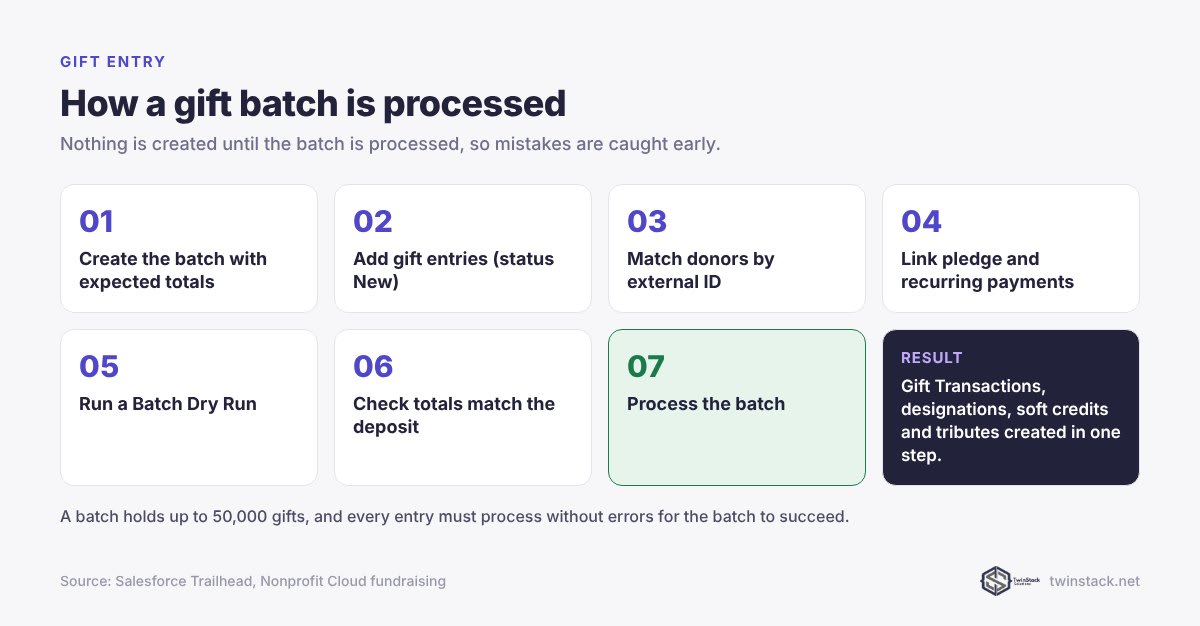
- Create the batch and record the expected totals: Estimated Gift Count and Estimated Batch Value. These come from your deposit slip or payment report.
- Add gift entries to the batch. Each entry has a Gift Processing Status of New.
- Match each donor. Gift Entry can be configured to find donors by name or by an external identifier such as a legacy donor ID or a payment platform ID. Use external IDs wherever you have them, because names are not unique.
- Link pledge and recurring payments. If the gift pays an existing pledge or recurring gift, use the Matching Gift Commitments field to connect it. The existing Unpaid transaction is updated rather than a new one being created.
- Run a Batch Dry Run. Every entry must process without errors for the batch to succeed, so the dry run surfaces problems before anything is written.
- Check the totals. Compare the batch's Total Gift Value Match against your expected value. Do not process until they agree.
- Process the batch. Entries move to Success, and Gift Transactions with their designations, soft credits and tributes are created.
How pledges and recurring gifts behave
A Gift Commitment creates Gift Transactions in anticipation of payment, each with a status of Unpaid. When the money arrives, you record it through Gift Entry against the matching commitment. The transaction is updated and stays linked to both the commitment and its schedule. Reports on expected versus received income therefore work without custom fields.
The common mistake is entering a recurring payment as a new one-off gift. That leaves the expected transaction Unpaid and double-counts the income. Train gift processors to check for a matching commitment first.
Designations, soft credits and tributes
- Designations: if no designation is set, Nonprofit Cloud applies your org's default, usually a general fund. If your finance team cares which fund a gift supports, make designation a required part of entry.
- Soft credits: use Gift Soft Credit for peer fundraisers, spouses, or the person who solicited the gift.
- Tributes: use Gift Tribute for gifts in honour or memory of someone, so acknowledgement letters can draw on it.
Getting gifts into Gift Entry from other sources
Online donations from forms or payment platforms are best routed into Gift Entry rather than straight into Gift Transactions, so they get the same matching and checks. If your forms are Google Forms, our free Google Form Auto Sync brings submissions into Salesforce natively. For historic gifts during a migration, load directly using the order in our data mapping guide.
Five gift processing habits worth keeping
- One batch per deposit, so batch totals reconcile to the bank.
- External IDs on every donor, so matching does not depend on names.
- A dry run before every process, without exception.
- Commitment check before entering any regular payment.
- Designation required at entry if funds are restricted.
Frequently asked questions
What is Gift Entry in Nonprofit Cloud?
Gift Entry is where gifts are captured as Gift Entry records before processing. Nothing else is created until an entry is processed, which lets you check donors, totals and designations first.
How many gifts can a Nonprofit Cloud gift batch hold?
A Gift Batch can hold up to 50,000 gifts. Every entry in the batch must process without errors for the batch to succeed.
What is a Batch Dry Run?
A Batch Dry Run tests a whole batch without creating records, so errors are found before processing.
How does Gift Entry handle recurring donations?
Recurring gifts are Gift Commitments that create Unpaid Gift Transactions in advance. When a payment arrives, you link the entry to the commitment with the Matching Gift Commitments field and the existing transaction is updated.
How does Gift Entry find the right donor?
It can be configured to match donors by name or by external identifiers. External IDs, such as a legacy donor ID, avoid mismatches between donors who share a name.
Does NPSP have Gift Entry too?
Yes. NPSP has its own Gift Entry feature built on Advanced Mapping, but it creates NPSP Opportunities and Payments rather than Nonprofit Cloud Gift Transactions.
Want your gift process designed around your deposits and funds? Book a free call.