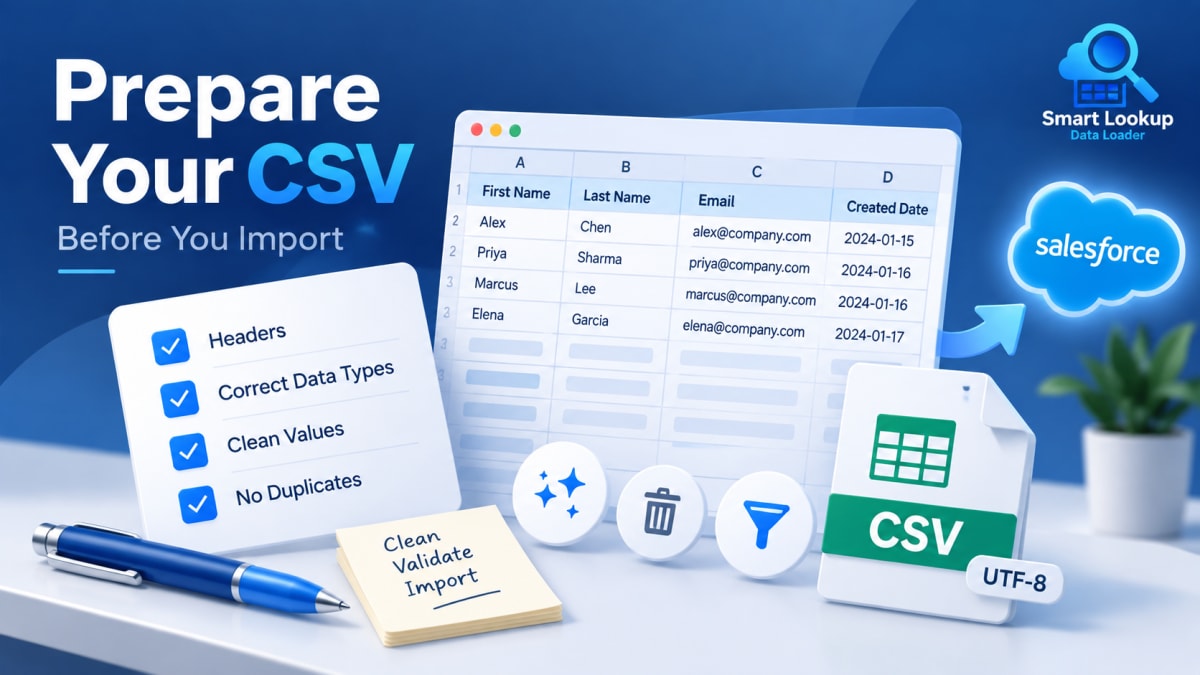
Most failed imports are not tool failures. They are file failures that the tool reported accurately.
Here is what to check before the load, in the order that catches the most problems soonest.
1. Encoding
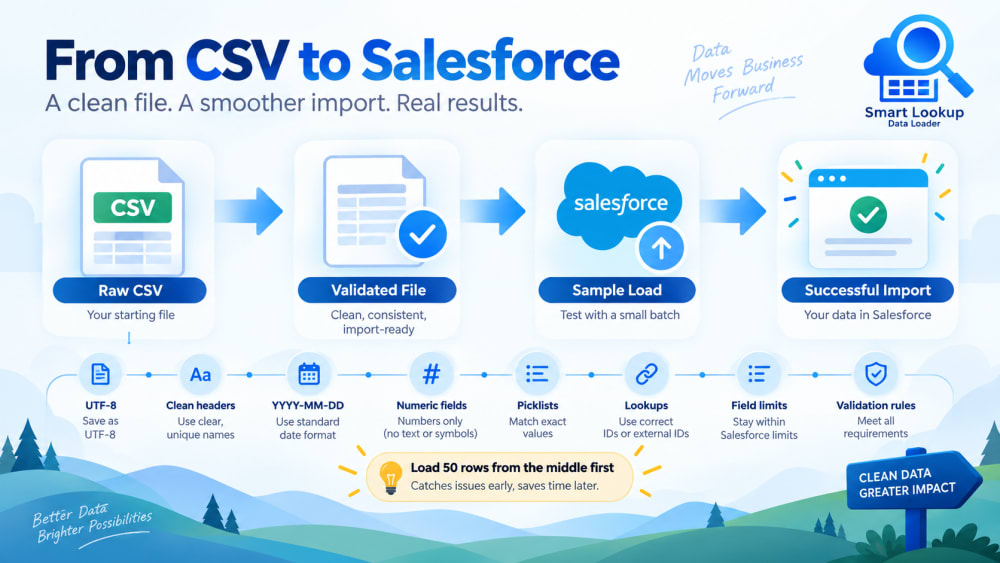
Save as UTF-8. If your file came out of a European or Asian system and went through Excel on Windows, there is a good chance it is not.
The symptom is names arriving mangled: accented characters replaced with question marks or three-character sequences. It is easiest to fix before the load and tedious afterwards, because you have to identify which records were affected.
2. Headers
Use one header row with no blank columns and no merged cells. Keep header names close to the Salesforce field labels or API names, because that is what auto-mapping matches against. account_name and Account Name both map cleanly. Col 3 does not.
Delete the summary row some systems add at the bottom. It will be imported as a record.
3. Dates
This is the single most common formatting failure, and it is silent when it goes wrong rather than loud.
Salesforce expects YYYY-MM-DD. A file with 03/04/2026 is ambiguous, and if it loads at all, half your records may end up in the wrong month. Convert the column to an unambiguous format before you load, and confirm Excel has not helpfully converted it back.
For datetime fields, decide what time zone the values are in and confirm it matches the running user’s setting.
4. Numbers
Check for currency symbols, thousands separators and percent signs. $1,250.00 is text, not a number.
Watch for scientific notation. Long numeric codes opened in Excel become 1.23457E+14, and that value is now permanently wrong in the file. If a column is an identifier rather than a quantity, format it as text before the file is ever opened.
Leading zeros disappear the same way. A postcode of 01234 becomes 1234.
5. Picklists
Values must match the picklist exactly, including case, unless the field allows anything. Export the picklist values from the field definition and compare, rather than assuming you know them.
For multi-select picklists, separate values with a semicolon and no spaces around it.
6. Lookups
Decide how each lookup will resolve before you load. If you are using a standard loader, the column needs record IDs, and you need a plan for getting them. If your loader resolves lookups by name or code, confirm that the values in your file are actually unique in the org.
Either way, run a count first: how many distinct values does your lookup column contain, and how many of those exist in the org? The gap is your problem list.
7. Field lengths
Text fields have limits. Standard text fields are typically 255 characters, and long text areas vary. Check the longest value in each column against the field definition. Descriptions imported from legacy systems are the usual offender.
8. Required fields and validation rules
Required is enforced at the field level and by validation rules, not by page layout. Check the object’s field definitions and its active validation rules before loading, because a rule written for manual data entry can reject an entire import.
If a rule is going to block a legitimate load, coordinate with whoever owns it rather than working around it.
9. Duplicates within the file itself
Before worrying about duplicates against the org, check for duplicates inside your own file. Two rows with the same match key in one upsert means one overwrites the other, and the order is not guaranteed.
10. Take a sample first
Cut fifty rows from the middle of the file and load those. The middle, because the top of a file is usually its cleanest part.
Check the results record by record against the source. Fifty rows takes ten minutes and finds almost everything that an eight thousand row load would have found the hard way.
After the load
Keep the source file and the result. A completed import you cannot reconcile against its input is difficult to audit later, and someone will eventually ask where a particular record came from.
Smart Lookup Data Loader includes a sample CSV download with the correct field API names for whichever object you are loading, which removes most of the header and structure problems before they start.

Import by name, email or code. Skip the VLOOKUP.
Smart Lookup Data Loader is a free, 100% native Salesforce app by TwinStack. Lookups resolve as records land, upserts match on several fields, and every failed row tells you why.
Get It Now, Free