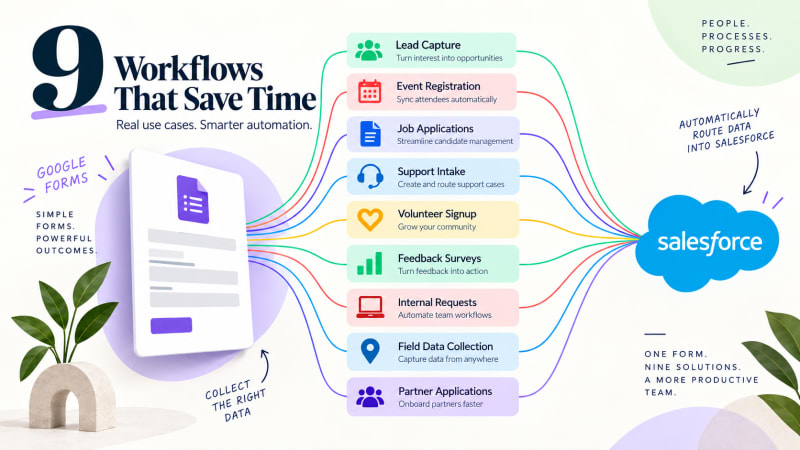
Most organizations running Salesforce also have between five and thirty active Google Forms that nobody has inventoried. Each one is collecting data that somebody is manually retyping, or worse, not retyping.
Here are nine worth connecting, roughly in order of how much time they save. Each assumes submissions are captured to Salesforce automatically and then routed with a record-triggered Flow.
1. Inbound lead capture
The form: a short enquiry form linked from your site, email signatures, or a QR code on a conference banner.
On the Salesforce side: Flow checks for an existing Lead or Contact by email. No match creates a Lead with LeadSource set to the form name; a match creates a Task on the existing record so nobody double-calls a customer.
Why it is first: response time to inbound enquiries correlates strongly with conversion. The gap between "submitted" and "a rep can see it" is pure lost value, and it is usually measured in hours.
2. Event and webinar registration
The form: registration for a webinar, workshop, or conference.
On the Salesforce side: Flow gets or creates the Contact, then creates a Campaign Member against the event Campaign with status Registered. Update to Attended afterwards from your check-in list.
Why it matters: organizers stop maintaining a parallel spreadsheet, and your Campaign ROI reporting actually has data in it.
3. Job applications
The form: an application form with a Drive file upload for the CV.
On the Salesforce side: create a candidate record, or a Case in a Recruiting record type, assigned to the hiring manager's queue. The CV link comes through with the submission.
Why it matters: applications sitting in a Google Sheet get reviewed in batches, which means good candidates wait a week and take another offer.
4. Support or service intake
The form: a "request help" form for customers, members, or internal staff.
On the Salesforce side: Flow matches the Contact by email and creates a Case with Origin set to Web Form, description populated from the submission, routed by an assignment rule.
Why it matters: this is the cheapest possible way to add a support intake channel without buying anything or exposing a portal.
5. Volunteer signup
The form: shift signup for a specific date or program.
On the Salesforce side: match or create the Contact, then create a Volunteer Shift, Program Engagement, or whichever object your nonprofit data model uses.
Why it matters: volunteer coordinators spend a startling proportion of their week reconciling signup sheets against existing records. This is the single highest-value automation in most nonprofits.
6. Post-program or post-purchase feedback
The form: an NPS or satisfaction survey sent after an engagement.
On the Salesforce side: relate the response to the Contact, Case, or Program Engagement it belongs to. Flow can flag low scores for immediate follow-up.
Why it matters: survey data that lives in a separate tool is survey data nobody acts on. In the CRM, a detractor score can trigger a task before the person churns.
7. Internal requests: IT, facilities, purchasing
The form: any "please do this thing for me" form that currently arrives by email or Slack.
On the Salesforce side: a custom request object or an internal-facing Case record type, routed to the right queue with an SLA.
Why it matters: requests that arrive by email are unmeasurable. You cannot report on how long IT takes to fulfill a request if the requests are in somebody's inbox.
8. Field data collection
The form: site visit reports, inspections, delivery confirmations, incident reports, submitted from a phone.
On the Salesforce side: create an activity record against the relevant Account, Case, or Program.
Why it matters: field staff often do not have Salesforce licenses or reliable connectivity. A Google Form works on any phone, and the data still lands in the CRM.
9. Partner, vendor, or member applications
The form: an onboarding application with documents attached.
On the Salesforce side: create the record with an Under Review status and route it into an approval process.
Why it matters: applications that arrive as email attachments have no status, no owner, and no queue. In Salesforce they have all three.
What is the pattern underneath all nine workflows?
Every one of these is the same shape:
Capture the submission reliably → route it with a Flow you control → act on it in Salesforce.
The capture step is the one that is usually missing, and it is the one that has to be boring and reliable. Google Form Auto Sync handles it by posting each submission directly from your form to a REST endpoint in your own org, creating a Form_Response__c record within seconds. No middleware, no spreadsheet, no per-task cost, so connecting all nine costs the same as connecting one.
The routing step is where you add the value, and it stays in Flow Builder where your team can see and change it.
Where should you start?
Do not connect nine forms this week. Do this instead:
- Inventory. List every active Google Form in the organization and its owner. An hour, and usually surprising.
- Pick the one with the most submissions per month. Volume is the best proxy for pain.
- Connect it and build one routing Flow properly. Get the deduplication and the failure path right.
- Let it run for two weeks. See what breaks.
- Then roll out. Each additional form is roughly five minutes of connection plus its own Flow.
Capture every submission, free.
Google Form Auto Sync posts each Google Form response straight into your own Salesforce org. No middleware, no task counter, no tiers.
Get It Now, Free