A free, 100% native guide. No Zapier, no middleware, no spreadsheets.
Short answer: install Google Form Auto Sync from the Salesforce AppExchange, run the five-step setup wizard, paste the generated script into your Google Form's Apps Script editor, and every submission from that point forward lands in Salesforce as a record within seconds. It is free, it runs natively inside your org, and no third-party server ever sees your data.
The rest of this guide explains the options, why most of them have a catch, and how to set the native one up properly.
Why is this harder than it should be?
Google Forms is the fastest way in the world to put a question in front of somebody. Build it in four minutes, share a link, done. That is exactly why sales teams, HR teams, event organizers and nonprofit program staff keep reaching for it, even in organizations that own a full CRM.
The trouble starts after somebody hits submit. The response lands in a Google Sheet. The Sheet lives in Drive. Salesforce, where the actual work happens, knows nothing about it.
Most teams then pick one of three workarounds:
- Manual export and import. Somebody downloads a CSV every Monday and runs Data Loader. It works until the week they forget, or the week the column order changes.
- Paid middleware. Zapier, Make, Pabbly and similar platforms will connect the two. They also charge per task, add a vendor to your data path, and give you another dashboard to check when something silently stops firing.
- A custom integration. A developer wires it up in a week. Two years later nobody remembers how it works and the person who built it has left.
All three are the same trade: you are paying with money, time, or risk for something that should just be a connection.
What are the four ways to sync Google Forms to Salesforce?
| Approach | Cost | Data path | Latency | Setup |
|---|---|---|---|---|
| Manual CSV export | Free | You | Days | None, but recurring |
| Sheets connector | Paid tier at volume | Google → Sheets → vendor → Salesforce | Scheduled | Medium |
| Automation platform | Per task | Google → vendor → Salesforce | Near real time | Low |
| Native AppExchange app | Free | Google → Salesforce | Seconds | Low, one-time per form |
Pricing and behavior of third-party platforms change; check their current plans before deciding. The structural difference does not change: every option except the last one puts a company between you and your own data.
What does "native" actually mean here?
"Native" gets used loosely in the Salesforce ecosystem, so it is worth being precise.
Google Form Auto Sync is a managed package built in Apex and Lightning Web Components. It installs into your org and runs there. The only thing that lives outside Salesforce is a short Google Apps Script that sits inside your own Google Form, in your own Google account, and posts directly to a REST endpoint in your org.
There is no TwinStack server in the middle. There is no queue somewhere holding your responses. The form talks to your org and nothing else touches the payload.
That has three practical consequences:
- Security review is simpler. When your IT or compliance team asks who else can see this data, the answer is nobody.
- There is no usage meter. Nothing counts your submissions, so nothing throttles them or bills you for a busy month.
- There is no second outage surface. If Google is up and Salesforce is up, the sync works.
How do you connect your first form?
Budget about fifteen minutes for the first one. Subsequent forms take five.
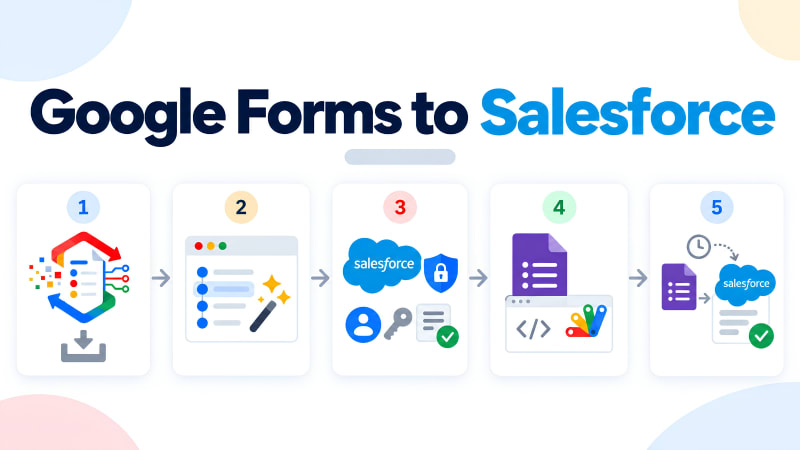
1. Install the package
Search the AppExchange for Google Form Auto Sync and install it into a sandbox or production org. The package creates a Form_Response__c object, two permission sets, and a setup tab.
2. Open the setup wizard
Go to the Google Form Auto Sync tab in your App Launcher. The wizard walks through five steps and generates everything you need, including your org's REST endpoint and the exact script to paste.
3. Create the External Client App
The wizard guides you through creating a Salesforce External Client App and enabling the OAuth 2.0 Client Credentials Flow. You will nominate a Run-As user. Use a dedicated integration user here rather than a named person's account. Then assign it the permission set the package ships with.
You will end up with a Consumer Key and a Consumer Secret. Keep them handy for the next step.
4. Paste the script into your Google Form
Open your Google Form, choose the three-dot menu, then Apps Script. Paste in the script the wizard gave you and drop in your Consumer Key and Consumer Secret. Save, then authorize the script when Google prompts.
You are not writing the script from scratch. The wizard generates it and you paste it in, then fill in two values.
5. Set the trigger and test
Add an On form submit trigger in the Apps Script editor, then submit a test response to your own form.
Go back to the Google Form Auto Sync dashboard in Salesforce. Your form should now show as connected, with a last-sync timestamp and a response count of one. Open the record and you will see the submission parsed into readable question-and-answer pairs rather than raw JSON.
What happens to the data once it lands?
This is the design decision that separates Google Form Auto Sync from most alternatives, and it is worth understanding before you install.
The app does not write directly into Lead, Contact, or any other standard object. Every submission is captured on Form_Response__c instead.
That is deliberate. An integration that writes straight into your Lead table on day one is an integration that can quietly corrupt your lead management process on day two, when somebody edits a form question and the mapping silently drifts. Capturing first and routing second means the raw submission is always preserved, always auditable, and never lost because a mapping broke.
From Form_Response__c you route wherever you want using tools you already know:
- A record-triggered Flow that creates a Lead when the form name matches your lead capture form
- An assignment rule that hands new submissions to the right queue
- A report or list view that a program manager checks each morning
- A Screen Flow that lets a coordinator review and convert in one click
The routing logic lives in your org, in Flow Builder, where your admin can see it and change it, rather than inside a vendor's proprietary mapping screen.
Common questions
Does it handle file upload questions?
File uploads in Google Forms produce a Drive link in the response, and that link is captured with the rest of the submission. The file itself stays in Drive.
What if I edit the form after connecting it?
Adding or renaming questions is fine. Because the full response is captured rather than mapped field-by-field, a new question simply appears in the captured response. Anything downstream that depends on a specific question, such as a Flow, should be checked after a change.
How many forms can I connect?
As many as you want. Each form is connected independently, and the dashboard lists all of them.
Is there really no paid tier?
No. There is no license fee, no per-response charge, and no cap that unlocks a paid plan.
Do I need a developer?
No. The wizard is built for admins. If you can create a Connected App, you can do this.
Where should you start?
If you already have a Google Form collecting anything that matters, whether that is leads, registrations, applications or requests, connect that one first and watch a test submission land. It takes about fifteen minutes and tells you more than any amount of reading.
Not sure what the app actually does yet? Start with What Is Google Form Auto Sync?
Stop copying and pasting form responses by hand.
Install Google Form Auto Sync free and have your first form connected in minutes. No license fee, no per-response charge, no third-party server.
Get It Now, Free