- Salesforce security
- spam protection
- Cloudflare Turnstile
- file uploads
- guest user
Public Salesforce Forms Without the Anxiety: Spam, Uploads and Guest Access
By TwinStack Team
A public form is, by definition, open to everyone. That is the point, and it is also why admins feel a little nervous the first time they publish one. Bots will find it. Someone will try to upload something odd. The question is what stands between those things and your data.
Smart Forms & Surveys answers with layers rather than a single lock. Some are on from the start, and some you switch on per form.
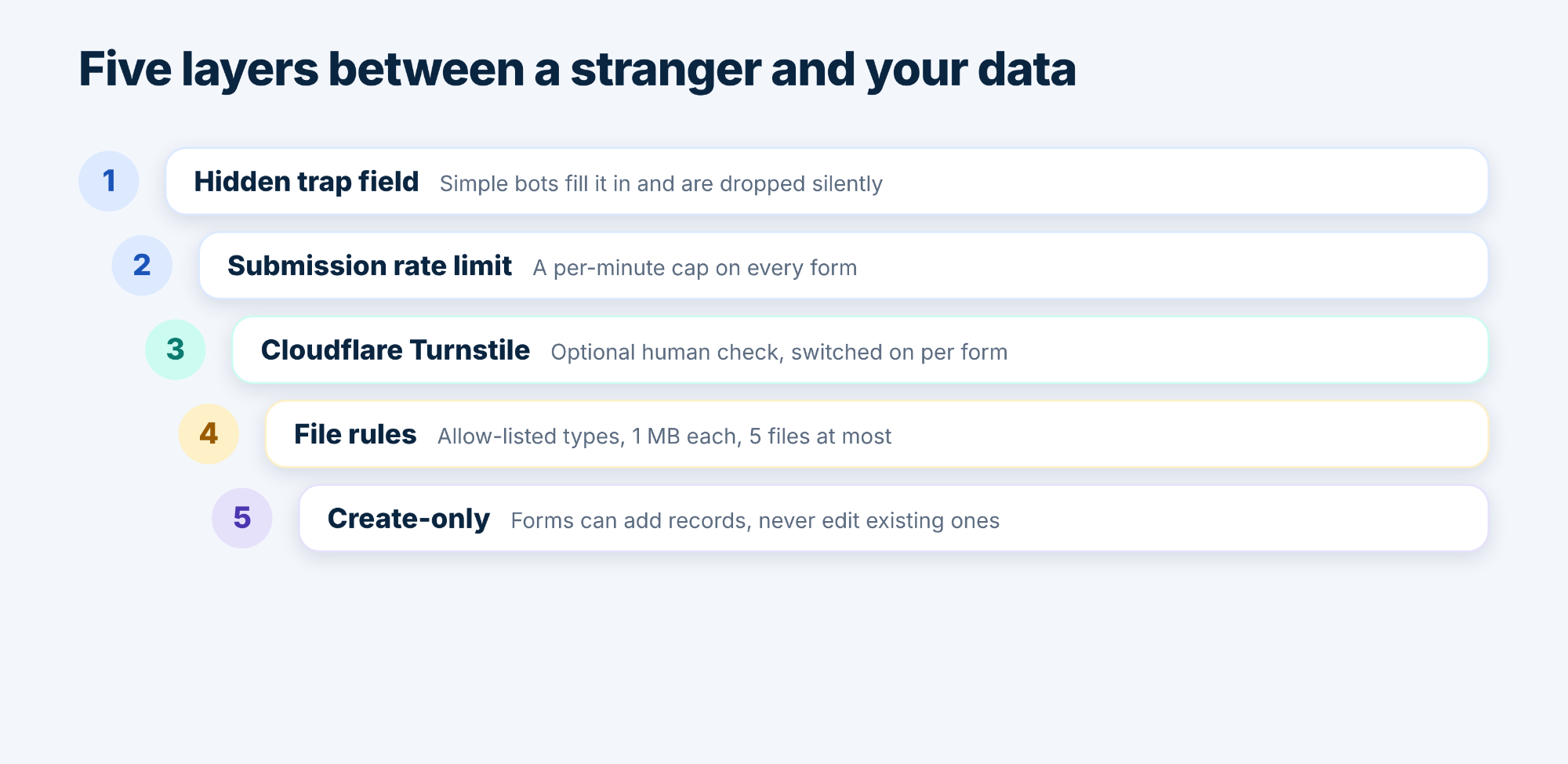
Layers one and two: the trap field and the rate limit
Every form carries a hidden field that people never see. Simple bots fill in everything they find, and a submission with that field filled in is dropped silently. Every form also has a limit on submissions per minute, so a flood of requests can’t pile up. Neither needs any setup.
Layer three: a human check with Cloudflare Turnstile
For forms that attract more determined bots, connect your own free Cloudflare account. On the Spam protection tab you add a Turnstile widget for your form domain, copy the site key and the secret key into the app, and test the connection. It takes about five minutes, and the keys remain yours.
Then switch on Spam check for each form and save it. Visitors complete a short check, which usually needs no clicking, before they can submit. Remember to save the form again after switching it on, because saving is what publishes the change.
If you ever remove your keys, forms that require the spam check stop accepting submissions until you add new keys or switch the check off. The tab tells you how many forms are affected before you remove anything.
Layer four: strict rules for file uploads
Uploads are off until you enable them on a form, and then they are limited. A visitor can attach up to five files of up to 1 MB each. Only documents and images are accepted, such as JPG, PNG, PDF, Word, Excel, PowerPoint, text and CSV files. Anything a browser could run, including HTML, SVG and JavaScript, is rejected. File names, sizes and types are checked on the server, not just in the visitor’s browser, and uploads are rate-limited too.
Layer five: create-only access
Public forms can only add records. A submission that includes a record Id is rejected, so nobody can use a form link to overwrite existing data. Lookup fields stay hidden until you configure them, and visitors never see or send record Ids.
Visitors also can’t see your other forms, your submissions or your Salesforce data.
Keep the admin side tight, too
Building forms and viewing submissions needs the FormBuilder_Admin permission set. It shows every form and submission, so give it only to people who should see that data, and never to the site’s guest user.