- Salesforce
- Flow
- Admin tips
Salesforce Flow Best Practices: 12 Rules for Admins
By TwinStack Team
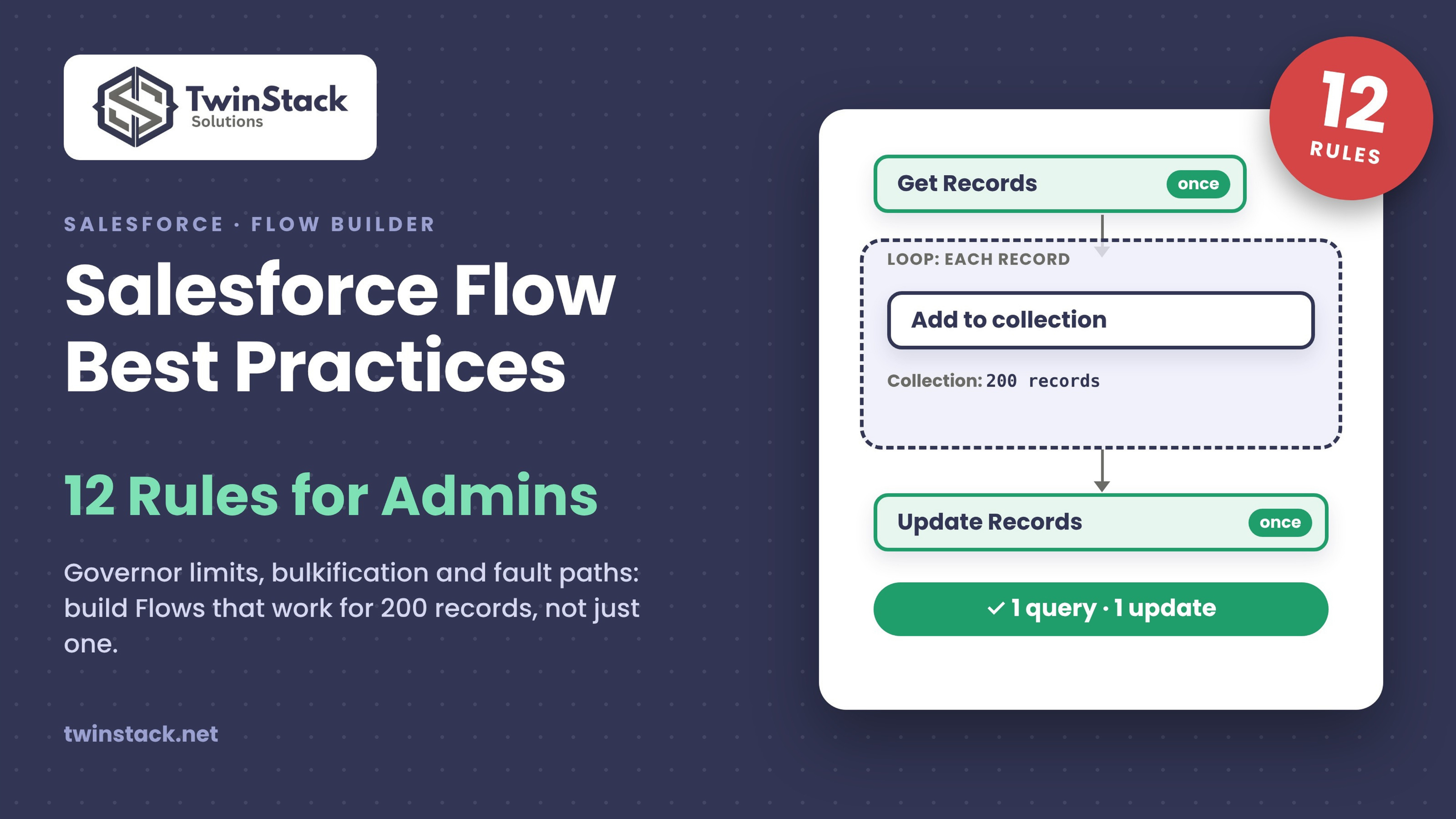
A Flow can pass every test you run and still fail the first time someone updates 200 records at once. Salesforce processes records in batches, so a Flow that works for a single record can hit governor limits when the whole batch arrives together.
The 12 rules below are the ones we apply on our own Salesforce projects. They are written for admins and follow the order in which we usually meet them while building.
This matters more now. Support for Workflow Rules and Process Builder ended after 31 December 2025, so new automation belongs in Flow.
The 12 Flow rules
Each rule is short on purpose. Read them once, then keep the checklist near the end of this post open while you build.
Pick the right Flow type and plan it first
Record-triggered Flows run when a record is created, updated or deleted. Screen Flows guide a person through steps, scheduled Flows run at a set time on a batch of records, and autolaunched Flows run in the background when something else calls them.
Before you open Flow Builder, write down what starts the Flow, what it must change and which objects it touches. A few minutes of planning on paper avoids the rebuild that follows when the wrong type was chosen.
Use before-save Flows for same-record updates
A before-save Flow changes fields on the record that started it, before Salesforce saves that record. Because the change is part of the save, it needs no separate DML statement, which keeps it light on limits.
Use an after-save Flow when you need the record ID, need to create or update related records, or need to send an email. If a job can be done before save, do it there.
Make entry conditions strict
Entry conditions decide whether a Flow runs at all. Set them so the Flow starts only when a specific field has a specific value, rather than on every save of the record.
Where it fits, choose the option to run only when a record is updated to meet the condition requirements. Then the Flow does not fire again on every later edit, and you avoid unexpected changes and wasted processing.
Never put queries or DML inside a loop
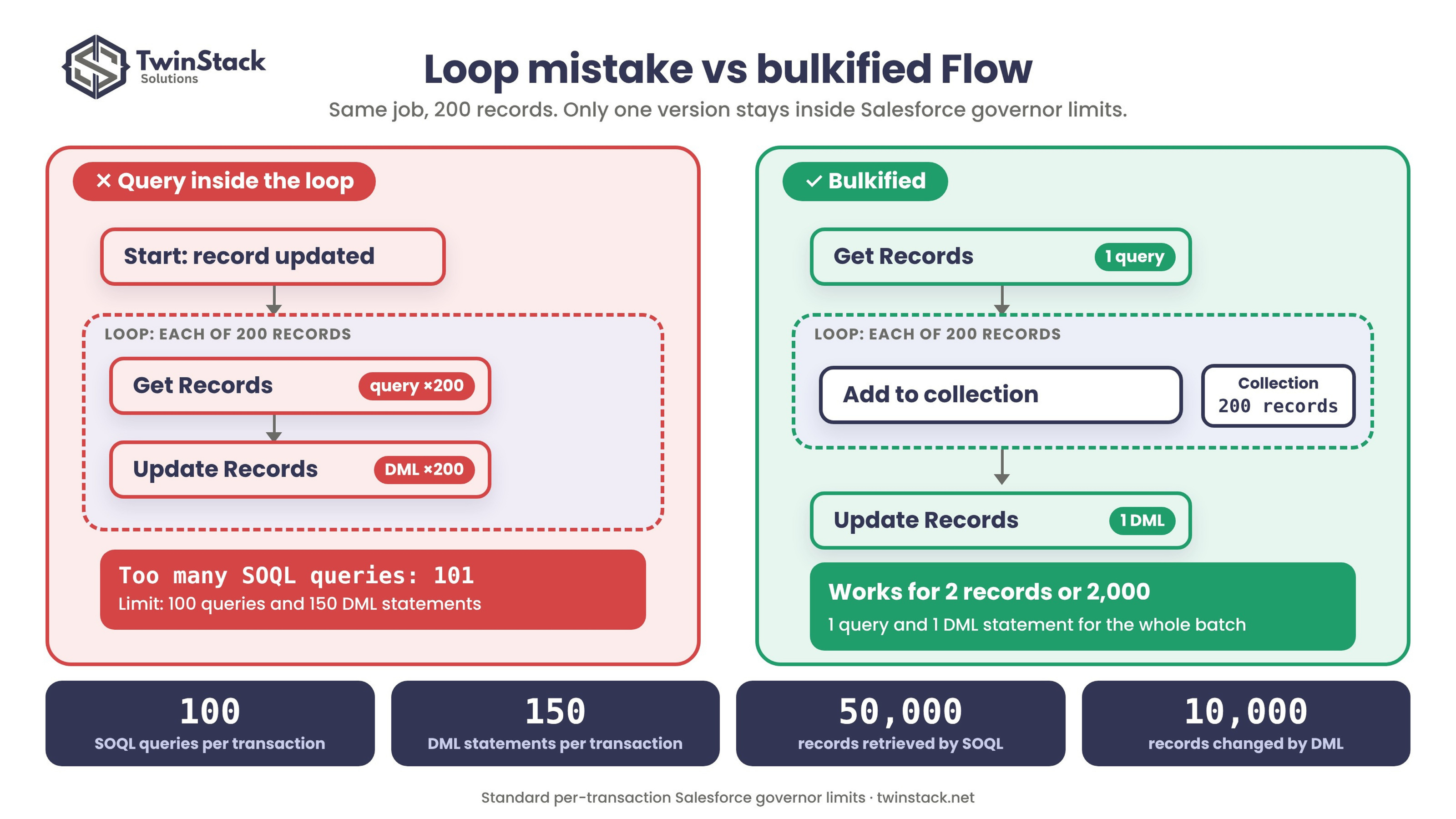
This is the rule that causes most Flow failures. Each Get Records element runs one SOQL query, and a transaction is allowed 100 of them. Each Create, Update or Delete Records element runs one DML statement, and the limit is 150.
Put one of those elements inside a loop and it runs once per record. With 200 records, the Flow stops with an error before it finishes. The fix is about where you place the elements:
- Put Get Records before the loop.
- Put Create, Update and Delete Records after the loop.
Bulkify with collections
Bulkifying means handling many records in one pass instead of one at a time. In a Flow, that means using a collection variable to hold the records you want to change.
Inside the loop, use an Assignment element to update the values on the current record and add it to the collection. After the loop ends, run a single Update Records element on the whole collection. The Flow then uses one query and one update, whether it handles 2 records or 2,000.
Get only what you need
Add filters to every Get Records element so it returns only the records the Flow will use. A query with no filter can pull in far more data than you intended.
Limits apply to rows as well as to statements. A transaction can retrieve 50,000 rows with SOQL and change 10,000 rows with DML. Narrow filters keep you well away from both numbers and make the Flow quicker to run.
Add a fault path to every data element
Any element that reads or writes data can fail, for example because of a validation rule, a locked record or a missing permission. Without a fault path, the user sees a generic error and you get little to work with.
Connect a fault path from each Get, Create, Update and Delete Records element. Send the error message to an admin by email, or write it to a log record. In screen Flows, show the user a clear message about what to do next.
Never hard-code IDs
Record IDs for things like record types, queues and users are different in a sandbox and in production. A Flow that works in one can break the moment you deploy it to the other.
Look the record up instead. Use Get Records with the developer name of the record type or queue, or store the value in custom metadata or a custom label. Then the same Flow runs in every environment without edits.
Control how many Flows run on each object
Several record-triggered Flows on one object all run in the same transaction and share the same limits. When two of them change the same field, the result depends on which runs last.
Keep the number small, group related logic by purpose and use the trigger order setting where order matters. The Flow Trigger Explorer in Setup shows which Flows run on an object and in what sequence, so check it before you add another.
Name and describe everything
Name each Flow so it says what it does, such as Account_AfterSave_UpdateContacts. A name that gives the object, the timing and the purpose saves time for whoever opens the Flow list next year.
Do the same for elements. Get_Open_Cases tells you what it does at a glance, while Get_Records_1 tells you nothing. Use the description field to record why the Flow exists and who asked for it.
Reuse logic with subflows
If the same steps appear in more than one Flow, move them into a subflow and call it from each place. Common examples are sending a standard notification or logging an error.
When the rule changes, you edit one subflow instead of hunting through several Flows. A subflow also keeps the main Flow shorter, which makes it easier to read and to review.
Test with bulk data before you activate
Testing with one record proves very little. In a sandbox, load 200 or more records with Data Loader so the Flow handles a full batch, as it will in real use. Our free Smart Lookup Data Loader is one option for preparing and loading that test data.
Then open the debug log and check the number of SOQL queries and DML statements used. If those counts grow with the number of records, a query or update is still inside a loop. Keep the previous Flow version so you can roll back quickly if something goes wrong after activation.
Checklist before you activate a Flow
Run through these eight points every time. Each one comes from the rules above.
- The Flow type fits the job, and before-save is used for same-record updates.
- Entry conditions are strict, so the Flow runs only when it should.
- No Get, Create, Update or Delete Records element sits inside a loop.
- Records are collected in a collection and saved with one Update Records after the loop.
- Every Get Records element has filters, and every data element has a fault path.
- No record IDs are typed into the Flow.
- The Flow and its elements have clear names and a description, and Flow Trigger Explorer shows no clash with other Flows on the object.
- It has been tested with 200 or more records in a sandbox, the debug log counts are low, and the old version is kept for rollback.
FAQ
What is bulkification in Salesforce Flow?
Bulkification means building a Flow so it handles many records in one pass. You collect the records in a collection and run one query before the loop and one update after it, instead of a query or update for each record.
How many SOQL queries can a Flow run?
A transaction can run 100 SOQL queries, and each Get Records element counts as one. It can also run 150 DML statements, and each Create, Update or Delete Records element counts as one. These limits are shared by everything running in the same transaction, including other Flows.
How do I fix "Too many SOQL queries: 101" in a Flow?
The error usually means a Get Records element is inside a loop and ran once per record. Move it before the loop, add the records you need to a collection inside the loop, and save them with one Update Records element after the loop.
Are Workflow Rules and Process Builder still supported?
No. Support ended after 31 December 2025. Existing rules and processes can still run, but Salesforce no longer fixes issues with them, so new automation should be built in Flow.
Conclusion
Build for 200 records from the start. A Flow designed for a full batch costs little extra effort, and it will not fail the day someone runs a data load or a bulk edit.
If you only remember one rule, make it rule 4: never put queries or DML inside a loop. Follow TwinStack for more practical Salesforce guides, or visit twinstack.net.
Sources
- Avoid flow limits (Salesforce Trailhead)
- Complete guide to Salesforce Flow limits (Salesforce Ben)
- Salesforce announces end of support for Workflow Rules and Process Builder (Salesforce Ben)
More from TwinStack
Need help with your Salesforce Flows?
Tell us what your Flows do today and where they struggle. We will review them with you and suggest practical fixes.
Contact TwinStack